Skip to content
Independent reference

After the install: living with a package manager

A calm, practical homebrew overview of what happens on your Mac in the months after the first command runs.

Laptop screen showing a terminal window with command line text
Common questions

Homebrew basics, answered plainly

What is Homebrew, in one paragraph?

It is a package manager for macOS: a program that fetches software, unpacks it into a known location, records what it installed, and keeps a list it can act on later. Most short answers to what is Homebrew stop at installation. The longer answer, and the one this site covers, is that it also tracks versions, links files into place, and remembers enough about each package to update or remove it cleanly later.

How does Homebrew work once packages are already installed?

Anyone asking how Homebrew works after day one is really asking about bookkeeping. Each install is recorded in a prefix directory with its own version folder, and symbolic links point the system at the current version. Updates fetch new definitions from the repositories, build or download the new version, then move the links. The old version often stays on disk until you clear it, which is why a long-running setup grows quietly.

What is the difference between a formula and a cask?

A formula is a definition for command line software and libraries, installed into the package manager's own directory tree. A cask describes a prebuilt macOS application, usually a .app bundle that lands in Applications. The homebrew formula vs cask distinction matters most after setup: formulae are upgraded by the package manager end to end, while many casks also have their own built-in updaters, so two systems can end up managing the same application.

What are taps, and do they need attention later?

Taps are additional package repositories layered on top of the default ones. Homebrew taps explained simply: each tap is a cloned Git repository of package definitions, refreshed whenever you update. Over time a tap can go unmaintained, drop a package you rely on, or offer a name that collides with one from the main repositories. Reviewing which taps you still use is ordinary upkeep, like checking which newsletters you still read.

Why do dependencies pile up over time?

Installing one package pulls in the libraries it needs. Remove the original package and those homebrew dependencies usually stay, because nothing tracks intent, only relationships. After a year of trying tools, a setup can carry dozens of libraries nothing asks for anymore. Listing packages that were installed as dependencies and are no longer required, then removing them deliberately, is the routine most people skip until disk space forces the issue.

What does a Brewfile actually do for me later?

A Brewfile is a plain text list of the packages, casks, and taps a machine should have. Homebrew bundle explained in aftercare terms: it turns an accumulated setup into something you can read, edit, commit to version control, and replay on a new Mac. The homebrew brewfile explained properly is less a backup than a statement of intent, one you regenerate occasionally so it still matches reality.

Is this site a good starting point for beginners?

Yes, though it is written from an unusual direction. Most material for homebrew for beginners covers the first install and stops. This homebrew guide starts where that leaves off: what the directories hold, how the homebrew package structure stays consistent, when to prune, and how to read what the tool tells you. If you already installed something last year and never looked again, the topic pages are written for exactly that moment.

About this publication

A reference for the years after the install

Recordprinciples is an independent editorial project about software distribution standards, written for the long middle of a system's life rather than its first afternoon. Most material answering what is homebrew stops the moment a command succeeds. We start later: three months on, when a machine carries forty packages, two extra repositories and a version pin nobody remembers setting. Our homebrew overview treats a package manager as something you live beside, not something you configure once. Every page here is a homebrew guide to maintenance decisions, written in plain language and checked against the documented behaviour of the tools themselves.

We publish nothing for sale and recommend no vendor. The homebrew basics we cover are the mechanics a reader can verify: how homebrew works when it resolves a dependency, where files land, what an upgrade actually replaces, and why a package that installed cleanly can drift out of step with the rest of the system. Pages on homebrew formulae explained and homebrew casks explained sit beside material on homebrew taps explained and homebrew dependencies, because in practice those questions arrive together. Written for a United States audience but describing behaviour that is the same everywhere.

A person reviewing command line output on a laptop screen
What we cover

Six areas of homebrew package management, after setup

The package manager in daily use

Our homebrew overview follows what settles in once installation is finished: where the prefix lives, what runs on a routine update, and which commands you will actually type again. Homebrew for beginners usually means one install session, but the homebrew package manager keeps working long after, and knowing its habits makes later decisions cheaper.

Formulae and their upkeep

Homebrew formulae explained from the maintenance side: command line packages built or poured from a bottle, linked into the prefix, and carrying their own version history. We cover what an installed formula leaves behind, how old versions accumulate, and which upkeep steps keep a formula predictable months after it first appeared on the machine.

Casks and application files

Homebrew casks explained as ongoing housekeeping rather than a one-time copy. Casks place full applications and supporting files in system locations, and many update themselves independently. This section covers tracking what a cask installed, understanding the homebrew formula vs cask split in practice, and removing one cleanly when it is no longer wanted.

Repositories and taps

Homebrew taps explained means looking past the moment a repository is added. Extra homebrew repositories change where package definitions come from, how often they change, and which name wins when two sources offer the same tool. We describe the long-term cost of each added tap and how to audit the ones already present.

Dependency trees over time

Homebrew dependencies rarely stay tidy. Libraries arrive as requirements of something else, outlive the package that needed them, and quietly grow the footprint. Here we cover homebrew package structure, reading why a given library is present, distinguishing direct installs from automatic ones, and pruning what no longer supports anything.

Brewfiles and reproducible setups

Homebrew bundle explained alongside homebrew brewfile explained: a plain text list of packages, casks and taps that records a machine's state so it can be rebuilt or compared later. We cover keeping that file honest as the setup changes, and what it is genuinely useful for once the first install is long past.

After the install

Four stages of living with a package setup

Settle the baseline

The first week after setup is the quietest moment to record what you actually have. A plain list of installed formulae and casks, written down once, becomes the reference point for every later question. This is where homebrew basics stop being theory: you can see the package manager's directory, its permissions, and which tools it now owns on your machine.

Watch the dependency tree grow

Every package you add pulls in libraries it needs, and those libraries stay after the package that asked for them is gone. Homebrew dependencies accumulate quietly. Checking which items are still required by something, and which are now orphans, turns a vague sense of clutter into a short, specific list you can act on.

Decide an update rhythm

Updates are not an emergency and they are not optional forever. Most people land on a fixed interval: a monthly pass that refreshes repository metadata, reviews what changed, and upgrades in one sitting. Understanding how homebrew works during that pass, in particular the split between refreshing catalogs and upgrading software, keeps the routine predictable.

Prune, record, repeat

Software you stopped using is still consuming disk, still pulling updates, and still shaping your dependency graph. Periodic removal, followed by a cleanup of leftover versions and cached downloads, closes the loop. Writing the surviving list back into a file keeps a homebrew package management setup reproducible on a replacement machine without reconstructing it from memory.

Before you commit

A checklist for the long haul, not the first hour

  • Who maintains the catalog entry you are about to install, and how often has it been updated? Third-party homebrew repositories vary widely in upkeep, and an abandoned entry becomes your problem months later.
  • Does this package arrive as a formula built for the command line, or as a cask wrapping a graphical application? The homebrew formula vs cask distinction changes how updates reach you and how removal behaves.
  • How many dependencies come along with it? A single tool can pull in a dozen supporting libraries, and homebrew packages explained honestly means acknowledging the footprint, not just the headline install.
  • If you add a tap, are you prepared to keep it? Homebrew taps explained properly covers the long tail: extra sources are checked on every refresh and can shadow or conflict with the main catalog.
  • Does the software also offer its own built-in updater? Two update paths managing the same application is the most common source of version confusion on a macOS system.
  • Can you reproduce this setup on another machine? A Brewfile answers that in one text file; without one, the answer is a long afternoon of remembering.
  • What happens when you remove it? Configuration files, caches, and data directories often survive uninstallation, and knowing where they live saves guesswork later.
The lead article

What is Homebrew once the novelty wears off

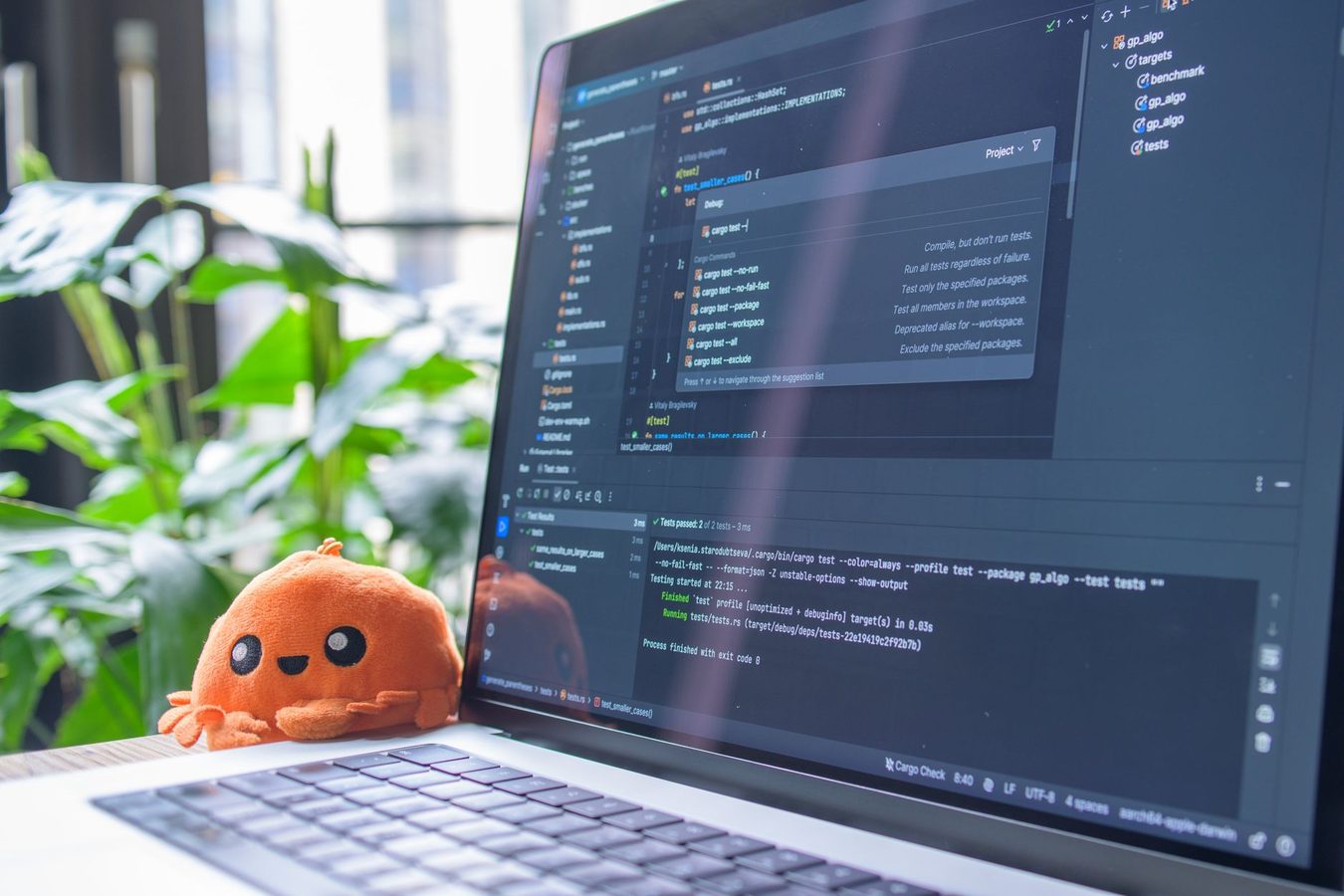
A laptop displaying a terminal window with command line text
A terminal session and a text editor: where most package upkeep actually happens.

The lead articleUpdated September 2026

The question behind the question

Most people ask what is homebrew on the day they need a single tool installed, and the answer they get is a one-line command. That answer is accurate and almost useless six months later, when the machine holds forty packages, three added repositories, and a dependency tree nobody has looked at since. A useful homebrew overview starts further down the timeline, at the point where installation is history and maintenance is the actual subject.

Described plainly, the homebrew package manager is a system for macOS, and on Linux, that downloads software from curated catalogs, places it in a predictable directory, and records what it put where. That record is the whole point. Without it, removing software means hunting files by hand. With it, the system can answer questions: what is installed, what depends on what, what is out of date, and what is no longer needed by anything.

How Homebrew works under daily use

Understanding how homebrew works is easier if you separate two things that feel like one. Refreshing the catalog updates the local copy of the package definitions — descriptions of where software lives, what version is current, and what it requires. Upgrading applies those definitions to the software you actually have. Running the first without the second tells you what changed; running the second without the first upgrades against stale information. Homebrew explained at this level removes most of the confusion beginners report.

The definitions themselves live in git repositories. That is why homebrew repositories behave like source code: they have history, they can be inspected, and they can be added to. The default catalog covers a large share of common tools. Anything outside it comes from a tap, an additional repository you register yourself. Homebrew taps explained in one sentence: a tap is a second shelf of definitions, checked alongside the first every time you refresh, and it stays checked until you remove it.

Formulae, casks, and what each leaves behind

Homebrew formulae explained in aftercare terms: a formula is a definition for software the project builds or downloads as a pre-compiled bottle, installed into the package manager's own directory tree and linked into your path. Upgrades replace the versioned directory and relink. Removal unlinks and deletes. The homebrew package structure is deliberately uniform, which is why cleanup is mechanical rather than investigative.

Homebrew casks explained alongside them: a cask wraps an application distributed the way macOS applications normally are, dropping it into the Applications folder and recording the fact. The consequence appears later. Many such applications ship their own update mechanism, so the version on disk can move without the package manager noticing. Reconciling the two is ordinary upkeep, not a fault. Homebrew formula vs cask, in practice, is a question about who is in charge of updating a given piece of software — and the honest answer is that for casks it is sometimes shared.

Homebrew dependencies deserve their own habit. Installing one tool may pull in supporting libraries; uninstalling that tool does not always take them with it. Periodically listing packages that nothing else requires, and reviewing them, keeps the tree close to what you actually use.

Keeping the setup reproducible

The most durable habit in homebrew package management is writing the setup down. Homebrew bundle explained simply: it is a subcommand that reads and writes a plain text manifest listing your taps, formulae, casks, and optionally applications from the system store. Homebrew brewfile explained: that manifest is the Brewfile, an ordinary file you can keep alongside your notes or configuration, read at a glance, and edit by hand.

The value shows up at the worst moments — a replacement laptop, a wiped disk, a second machine that needs to match the first. Instead of reconstructing a year of decisions from memory, you apply the file. It also works as an audit: reading a Brewfile is the fastest homebrew guide to your own machine, because everything you chose is on one screen. For homebrew for beginners, generating that file early, before the list grows long, is the single step that pays back most. Keep it current, and the aftercare problem mostly solves itself.

Keep reading, one topic at a time

Each topic page picks up where installation ends: what changes, what accumulates, and what needs a second look months later on a working macOS system.